
October 22, 2026
How Do You Professionally Clean a House? a Room Guide
Learn how do you professionally clean a house with a room-by-room process, safety standards, quality checks, and team training tips.

Sunday, June 7, 2026
Stop juggling texts and notes. Learn the secrets to building a schedule in Excel for your cleaning staff. This guide covers formulas, templates, and automation.
If you're building a schedule in Excel for a cleaning business, you're probably already feeling the pressure from both sides. Clients want reliability. Cleaners need clear assignments. You need a sheet that doesn't fall apart every time someone cancels, a recurring job shifts days, or a team member swaps a route.
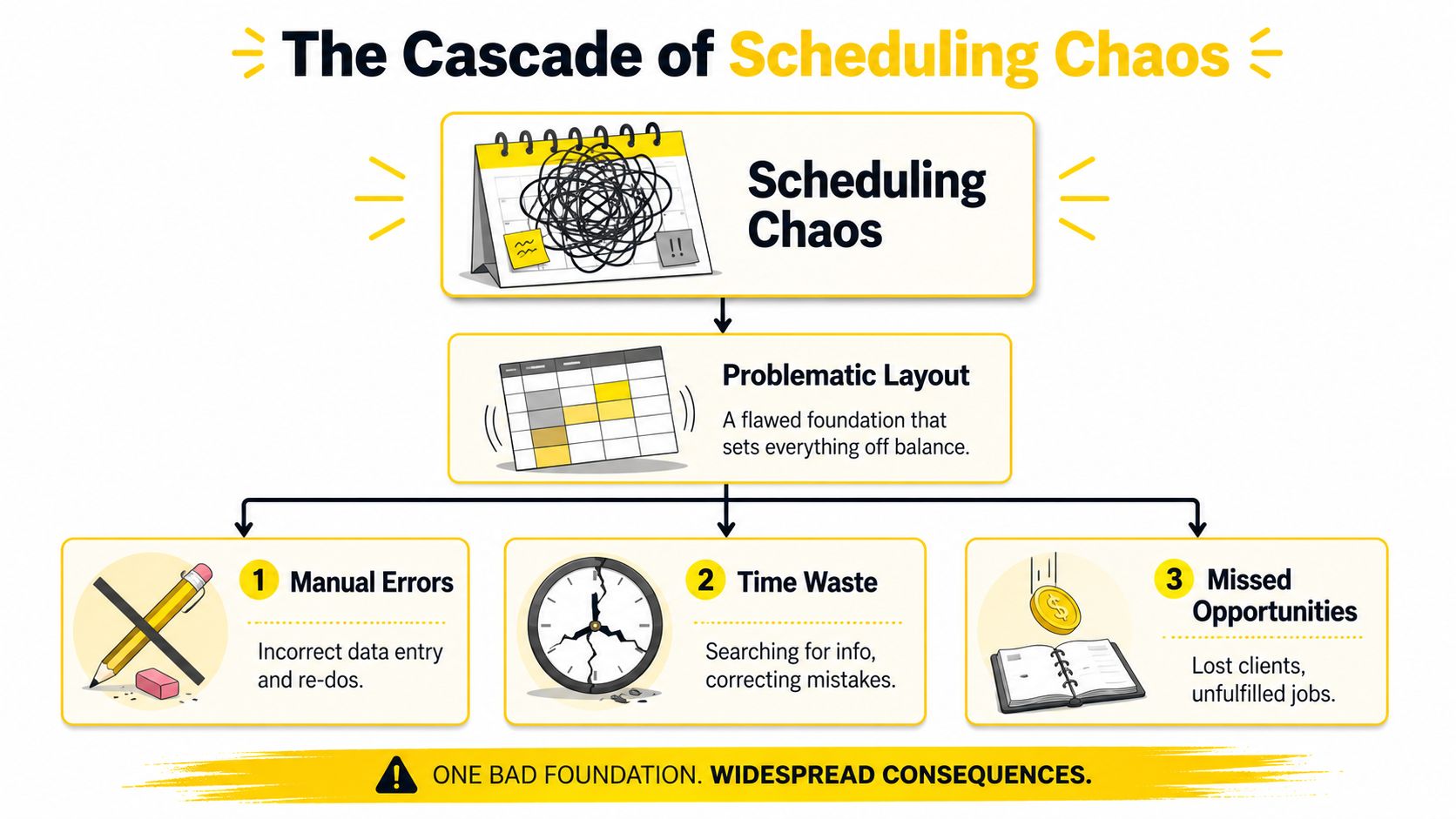
Most scheduling problems don't start with staffing. They start with layout. Owners open a blank workbook, build a pretty grid, type names into random cells, and then spend the rest of the week fixing the sheet instead of running the business. Excel can absolutely handle scheduling for a solo cleaner or a small team. But only if you build it like an operating tool, not a whiteboard.
A cleaning schedule breaks fast when it's built as a visual calendar first and a data system second. That's the trap. A sheet can look organized and still be fragile.
The first decision that matters is whether you're creating a loose grid or a formal Excel Table. Microsoft's own guidance for turning data into an Excel table starts with selecting the range and pressing Ctrl+T, and it says the table should use good headers in a single row. That structure is what makes the data easier to sort, filter, and expand as new rows are added, which is exactly what a real schedule needs when jobs and dates keep changing (Microsoft guidance on Excel tables).
For a cleaning company, the best base layout usually looks more like a job database than a weekly planner. Each row is one visit. Each column holds one fact about that visit.
Start with columns like these:
| Column | Why it belongs |
|---|---|
| Date | Gives you filtering by day, week, or recurring route cycle |
| Client | Keeps recurring work tied to the correct household or account |
| Address | Helps with route planning and reducing backtracking |
| Assigned Cleaner | Shows ownership clearly |
| Start Time | Anchors the day |
| Estimated End Time | Helps prevent overlaps |
| Status | Makes open, assigned, completed, or rescheduled jobs visible |
That structure gives you room to work. You can filter one cleaner's day, sort by neighborhood, or isolate unassigned jobs without rebuilding the workbook every week.
Practical rule: If you have to merge cells to make the schedule readable, you're usually building the wrong kind of sheet.
What works is a living table. What doesn't is manual cell-by-cell design where Tuesday's jobs sit in one colored block and Wednesday's jobs sit in another.
The reason is simple. Cleaning operations change constantly. One client pauses service. Another asks for a deeper clean. A cleaner calls out. A route gets delayed by traffic. A table absorbs that. A hand-built grid fights you every time.
If you also manage staff leave, the same principle applies outside daily scheduling. A structured resource like this build a dynamic holiday tracker Excel template is useful because it treats time off as trackable data instead of a side note scribbled into the schedule.
Another smart companion process is using a written checklist before jobs ever hit the calendar. A simple cleaning schedule checklist keeps your sheet from filling up with vague work orders and half-confirmed appointments.
A schedule gets cleaner when the input gets cleaner. If you type names and job details from memory every day, Excel won't save you from inconsistency. It will just preserve the inconsistency more efficiently.
The fix is simple. Build master lists in separate tabs.
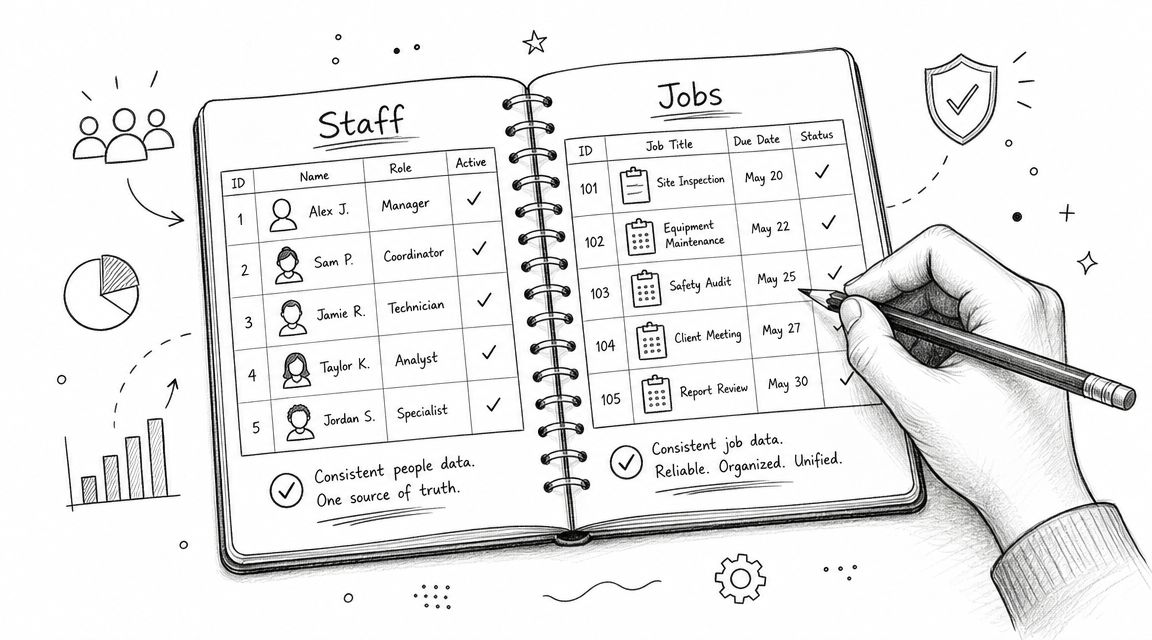
Create one tab called Staff. Don't use it for scheduling. Use it as the source of truth.
Include fields such as:
One employee entered as "Maria," "Maria R," and "M. Rivera" becomes three different people in your workbook. This inconsistency leads to broken totals, messy filters, and an unreliable weekly view.
If you're growing and need better staffing consistency before scheduling ever gets easier, industry-specific hiring resources like pipehirehrm.com are worth looking at for recruiting cleaning employees.
Create another tab called Recurring Jobs or Client Jobs, for storing the work that comes back every week, every other week, or every month.
Use fields like:
| Field | Why it matters |
|---|---|
| Client name | Keeps recurring work grouped correctly |
| Service address | Essential for route planning |
| Preferred day | Helps anchor repeat visits |
| Standard cleaning time | Supports realistic scheduling |
| Special notes | Entry codes, pets, supplies, or service instructions |
A lot of owners skip this because it feels like admin work. It is. It also saves more time than almost anything else in the workbook.
Project scheduling guidance gets this order right. The recommended sequence is to create a complete single-column list of every task first, then assign owners and priorities. Visuals like Gantt charts come later because the schedule's accuracy depends on the completeness of the task inventory, not the chart (project scheduling sequence in Excel).
The calendar only looks smart when the list behind it is complete.
That same principle applies to cleaning operations. List all recurring jobs, one-time jobs, add-ons, and constraints first. Then assign cleaners. Then build the visual daily or weekly view.
If you're also trying to keep attendance and scheduling aligned, an attendance tracker app guide helps connect what was planned with what happened in the field.
Excel starts earning its keep. A good schedule shouldn't just store assignments. It should calculate, flag, and pull details for you.
The fastest win is time generation. For time-based schedules, Microsoft's Q&A recommendation is straightforward: enter a start time in the first cell, then use =A1+TIME(0,30,0) in the next cell and copy it down to create 30-minute intervals automatically (Microsoft Q&A on time schedule formulas).
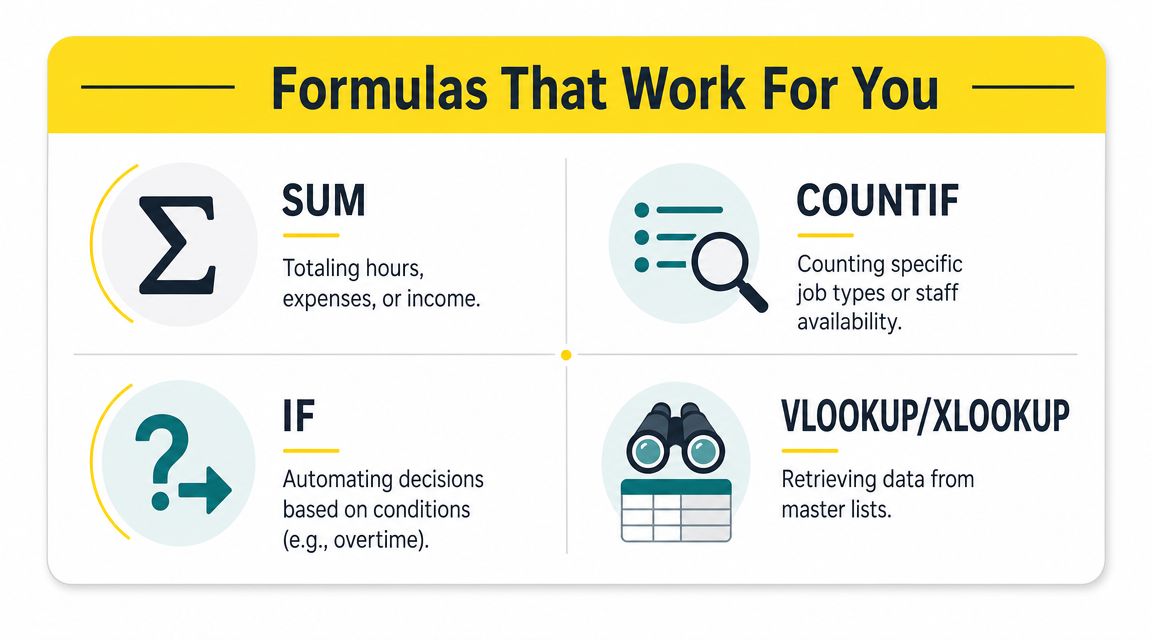
You don't need an advanced finance model. You need a handful of formulas that remove repetitive decisions.
TIME for slot creation
If your crews work in set blocks, generate the timeline with formulas instead of typing each slot manually. That's faster and less error-prone.
IF for status logic
If the Assigned Cleaner cell is blank, return "Open." If it contains a name, return "Assigned." That gives you a live status field without extra typing.
SUMIF for weekly workload
Use it to total scheduled hours by cleaner. This helps you see whether one person is overloaded while another has room.
INDEX/MATCH or XLOOKUP for pulling staff details
If the daily schedule shows a cleaner's name, use a lookup formula to pull their contact info from the Staff tab. That keeps dispatch details current without retyping them.
Here's the primary benefit. Once formulas handle the repetitive parts, your team spends less time maintaining the schedule and more time acting on it.
Let's say your daily sheet has these columns: Cleaner, Start Time, End Time, and Status. You can use formulas to support common decisions:
That setup makes payroll checks, route balancing, and job coverage much easier to review.
This video is a good companion if you want to see formula logic in action:
Field note: The best formula is the one your office can still troubleshoot on a busy Friday afternoon.
Keep that in mind. Complex formulas are fine if you understand them. If not, simplify. A workbook no one can repair becomes a liability.
If your schedule also feeds pricing assumptions, route length, or labor planning, a cleaning cost calculator guide can help you line up schedule hours with more accurate estimates.
A schedule full of text slows you down. You shouldn't have to read every cell to know what's wrong.
Conditional Formatting fixes that by turning the sheet into something you can scan in seconds. In one cleaning office, the schedule was technically complete but functionally useless. Every job was listed. Every name was there. But dispatch still had to stare at the screen to find open visits, urgent jobs, or cleaners with overloaded days.
The first useful rule is status-based formatting.
Use one color for Open, another for Assigned, and a different one for Completed. If a job gets rescheduled, give it its own format too. Suddenly the sheet stops behaving like a ledger and starts behaving like a dashboard.
A strong setup often looks like this:
The payoff shows up in daily operations. If a team lead can glance at the sheet and spot one yellow row in the middle of a full day, that row gets handled before it becomes a missed appointment.
You can also format duplicate time overlaps, highlight blank assignment cells, or visually flag jobs that carry specific service notes. Excel doesn't solve communication on its own, but it does make weak points visible faster.
A readable schedule prevents more mistakes than a clever one.
For printouts, keep the formatting restrained. Dark fills with white text may look sharp on screen and print badly in the field. A light color system with bold headers usually travels better.
The point isn't decoration. The point is speed. When you're managing routes, cleaner availability, and client expectations all at once, visual cues remove friction.
The moment you move from a few jobs a day to recurring routes across a team, basic scheduling habits start cracking. The sheet may still work, but the process around it gets shaky.
Recurring residential work is where most cleaning companies feel this first. The problem isn't entering one schedule. It's maintaining a schedule that repeats, shifts, and occasionally breaks.
A weekly client shouldn't require full re-entry each time. Store recurring jobs on the master list, then pull them into your active schedule using filters, copy-forward workflows, or template tabs for the week.
That helps, but it doesn't solve the bigger issue. Change management does.
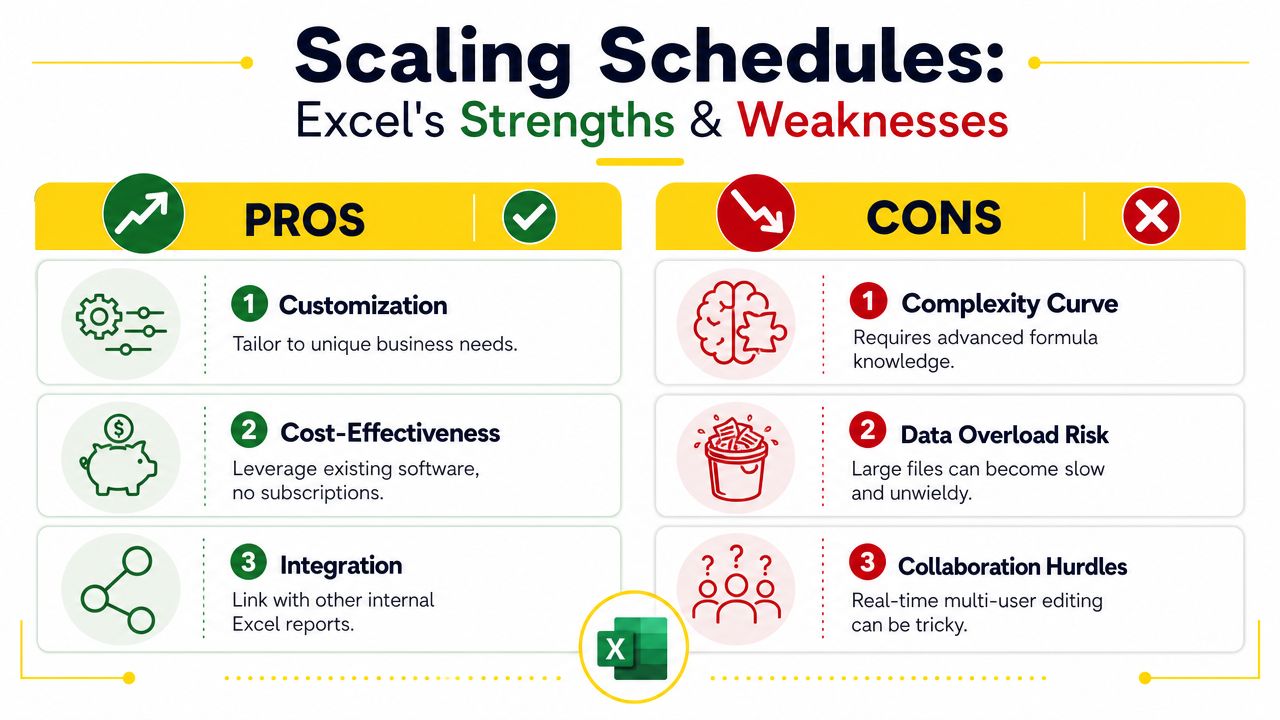
Homebase's Excel scheduling guide points out that schedules in Excel are updated manually every time the schedule changes. That's the operational weakness many beginner guides skip. When multiple people touch the workbook, when a sick day hits after the schedule is published, or when managers need an auditable history, spreadsheet scheduling gets fragile fast. That concern lines up with the broader point that spreadsheet errors are common enough to affect decision-making in real operations (Homebase discussion of Excel scheduling limits).
Excel works best when one person owns the file and the process is disciplined. It gets harder when:
You can reduce some pain by keeping the master file in OneDrive or SharePoint and tightening edit rules. For example, one person controls the master schedule, supervisors submit changes in a standard way, and only final versions get shared with crews.
That helps. It still isn't the same as a purpose-built dispatch system.
Owner's rule: If schedule changes happen all day, the spreadsheet is no longer just a planning tool. It's becoming an operations system.
Most Excel schedule tutorials stop at layout and formatting. Real cleaning businesses have another problem. You don't just need a schedule. You need a schedule that matches available labor to actual demand.
Microsoft documents a more advanced approach with Solver, which can be used to create a workforce schedule by setting an objective to minimize total employees while still meeting daily staffing requirements (Microsoft Solver workforce scheduling guidance). For a cleaning company, that way of thinking matters even if you never fully build the model.
It changes the question from "Who is free?" to:
| Better scheduling question | Why it matters |
|---|---|
| Which days are demand-heavy? | Helps avoid undercoverage |
| Where are jobs clustered? | Reduces route waste |
| Who has the right skill mix? | Prevents bad assignments |
| Which recurring jobs should stay with the same cleaner? | Improves consistency for clients |
When you're also working on expansion, route density, and staffing discipline, a growth-focused resource like how to grow a cleaning business fits well beside your scheduling process because the spreadsheet only reflects the system behind it.
Excel is a strong starting point. For many cleaning businesses, it's the first tool that brings structure to recurring jobs, cleaner assignments, and daily route planning.
It works best when the schedule is still manageable by a small team, one person owns the workflow, and changes can be controlled. In that stage, a well-built workbook can do a lot. It can organize jobs, reduce retyping, automate time blocks, and give you a workable view of the week.
The limit shows up when the sheet becomes your dispatch center. If cleaners need instant updates in the field, if multiple managers keep editing live schedules, or if you need stronger history and accountability, the spreadsheet starts slowing the business down.
You can see this pattern in other industries too. Even a category like tutoring scheduling software exists because once appointments, staff availability, and recurring sessions get operationally heavy, purpose-built tools become easier to run than a spreadsheet.
For cleaning companies, the same upgrade point usually arrives when scheduling, communication, and estimates all need to connect. That's when it's worth reviewing tools built specifically for the industry, including a deeper look at scheduling software for cleaning business. For broader operations ideas, both estimatty.com/blog and get.pipehirehrm.com/blog are useful places to keep learning.
If you want a cleaner front-end to your operations, Estimatty helps cleaning businesses automate estimates, capture leads faster, and create a smoother handoff between incoming work and the schedule your team operates on.